A PNGTuber that
talks when you talk.
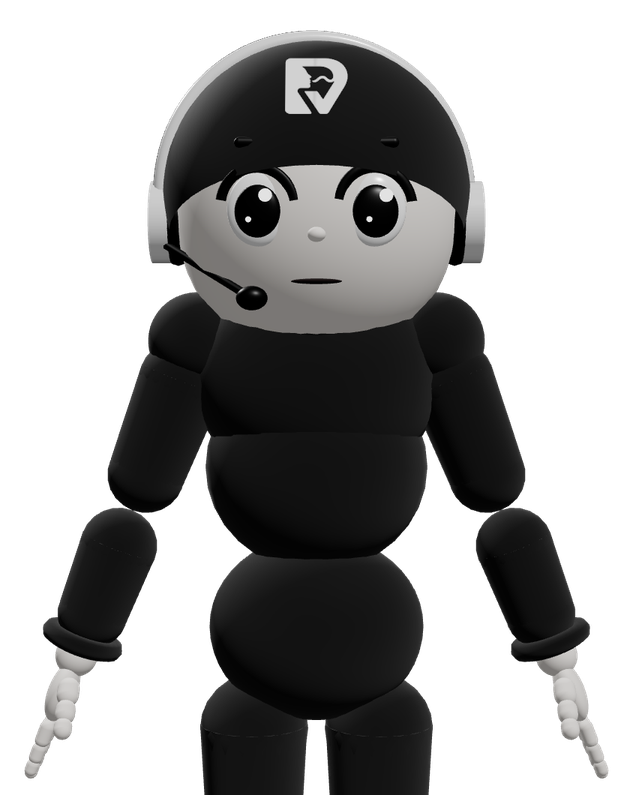
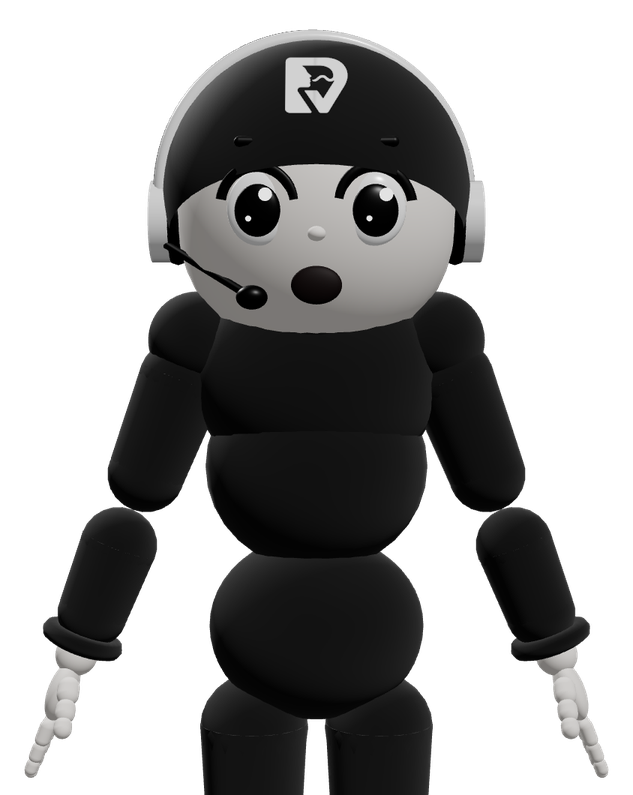
Pick two pictures — mouth closed and mouth open. RupaVox listens to your microphone and switches them as you speak, with blinks and a little bounce. No webcam needed.
How a PNGTuber works
Your character is a set of pictures. RupaVox shows the right one at the right moment.
Shown while you are quiet. Needed.
Shown while you talk — it flips with your voice, so your character looks like it is speaking. Needed.
Optional. A quick blink every few seconds so your character feels alive.
Optional. For blinks while you talk.
Choose how loud you need to be before the mouth opens, so background noise doesn’t set it off.
A little hop while you speak. Turn it off for a calmer look.
No pictures? Make them in one click.
Pick any of the 295 free characters in the Store, switch to 2D and press Make pictures. RupaVox draws all four pictures for you — head and chest, see-through background — and your PNGTuber is ready.
Set it up in 4 steps
- Open the Studio
Open RupaVox Studio and click your avatar under In this scene.
- Switch to 2D
Set Avatar type → 2D picture (PNGTuber). Allow the microphone when your browser asks.
- Add your pictures
Choose your own PNGs, or press Make pictures to create them from a 3D character.
- Put it in OBS
Press Go Live → Copy link, then in OBS add Sources → Browser Source and paste it. Set Background → Transparent to sit on top of your game.
Questions
Is this PNGTuber maker free?
Yes. PNGTuber mode is free in RupaVox, including Make pictures, blinking, bounce and OBS Browser Source.
Do I need a webcam?
No. A PNGTuber only needs your microphone. That also makes it the lightest option for older laptops.
Where are my pictures stored?
On your own computer, in your browser. They are not uploaded to us.
Can I use it in Discord, Zoom or Google Meet?
Yes. Add it to OBS as a Browser Source and press Start Virtual Camera, then choose OBS Virtual Camera in your call app. Give it a background colour or picture for calls.
The mouth opens on background noise. What do I do?
Raise Talk sensitivity in the PNGTuber panel. You can also set a noise gate and pick the right microphone in Tracking → Lip Sync.
Can my viewers make it react?
Twitch chat reactions work with 3D characters. In 2D mode the picture follows your voice.
Ready when you are.
Free, in your browser. Nothing to install for RupaVox.